Services across multiple bookings can share the costs associated with the services, you can select to join the services in the assignment. This can be done either when creating the assignment or at a later date when the assignment is edited.
The sharing of costs applies to non accommodation services only, and the services being joined must be for the same product. There is an option within the assignment selection where if the same product was not originally booked within an FIT or Group Booking the assignment will allow for the product to be substituted as the products need to be the same for the joint service function to operate. Instruction on substituted services is available.
When the services are joined within an assignment the services within the FIT or Group bookings are re-costed on the total cost of the pax on all services. The value is then prorated across all of the service lines across all bookings.
In this example we have a service that has a total value of $250.00 the cost of this service is split between each booking. There is a total of 11 passengers using this transfer, the cost is $22.72 per person and the system will automatically apply 2/11ths for Booking 1, 3/11ths for Booking 2, 2/11ths for Booking 3 and 4/11ths for Booking 4.
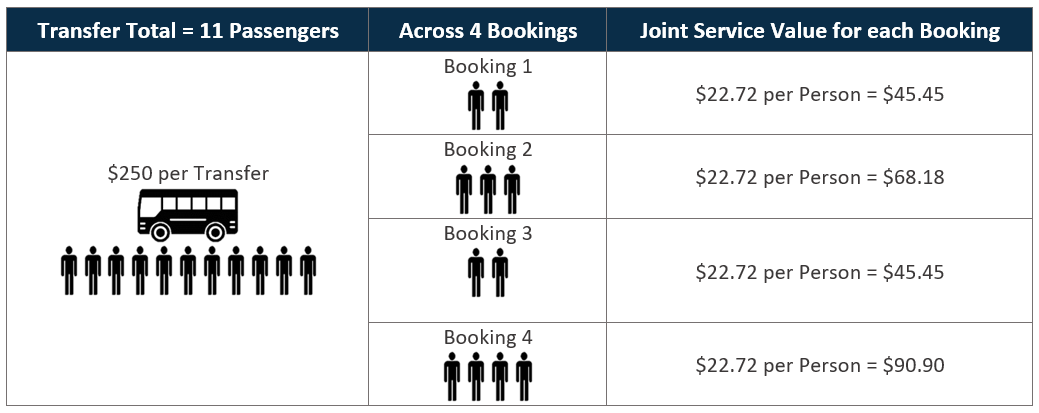
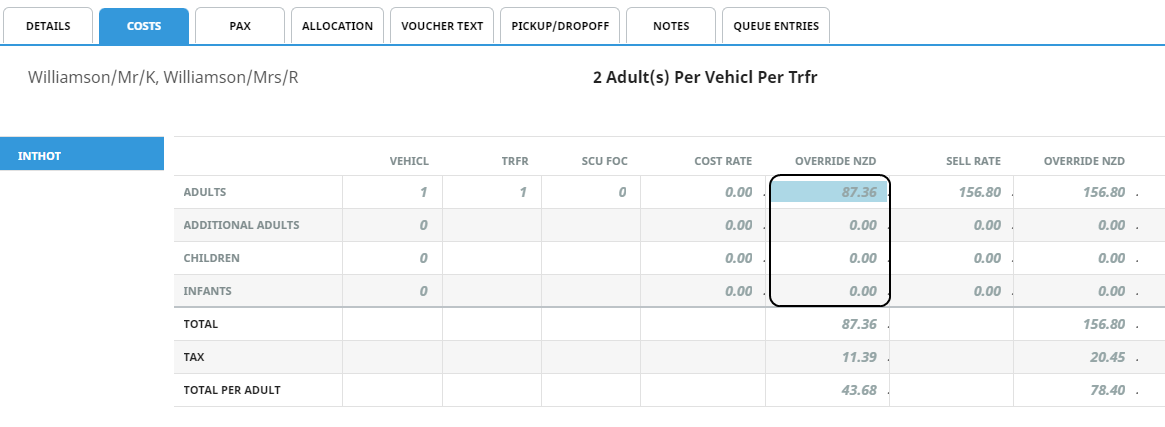
The bookings are automatically updated within the costs screen with a shaded overridden value. Indicating that the cost of the service does not match the product cost because the bookings have been joined, and are now sharing the costs.
Before Services are Joined
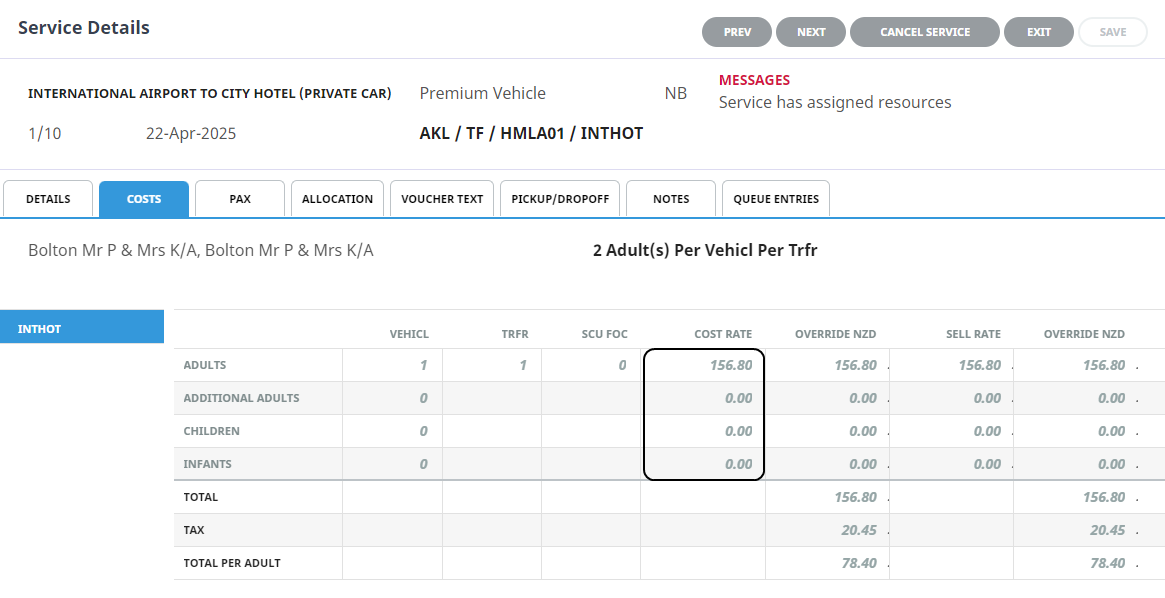
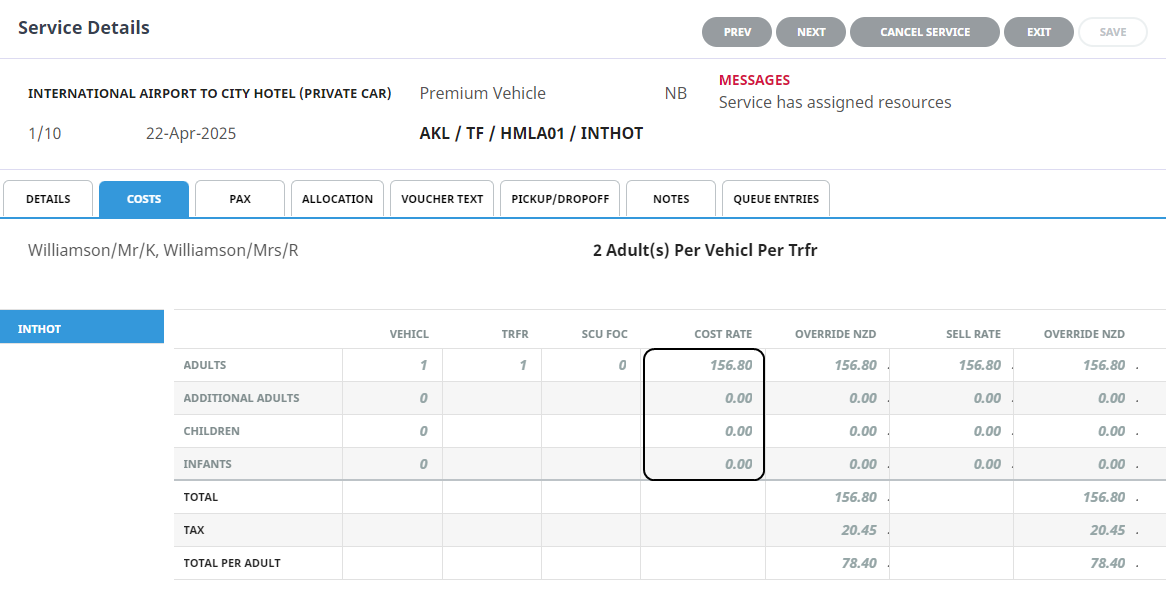
In the example below you will see two bookings, one for Mr and Mrs Bolton and the other for Mr and Mrs Williamson. The first screen captures show the service costs before the service was joined.
Booking 1 - Pre-joined Service
Booking 2 Pre-joined Service
After Services are Joined
You can see in the example below after the join service has been applied the costs have now been shared across the two bookings and the services have automatically updated. A message will display within the bookings service costs screen to say that the service has an assigned resource.
Booking 1 - Post-joined Service
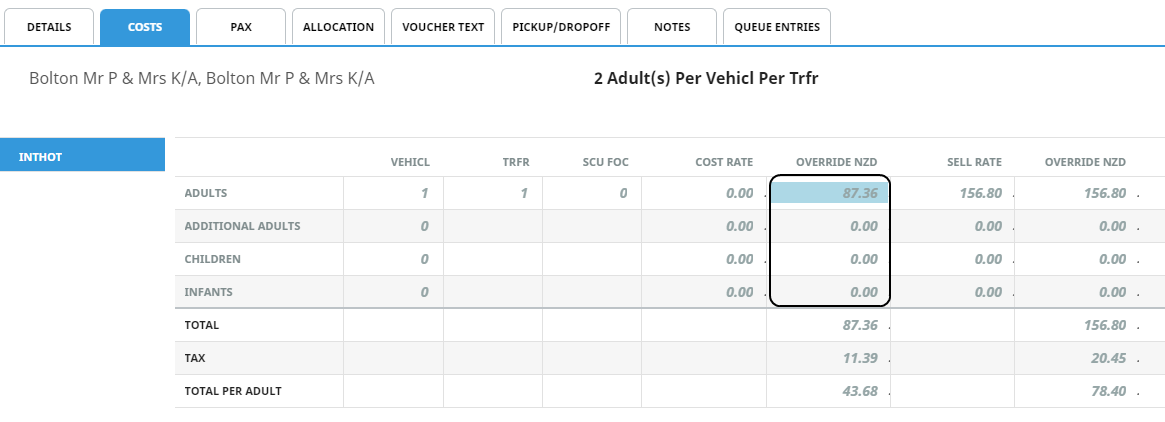
Booking 2 - Post-joined Service
The procedure below will help you to join services for existing assignments. If the assignment has not yet been created, follow the New Assignment procedure to create the assignment.
Join Services
-
From the Home menu, select
 Home > Operations > Service Operations > Resource Assignment.
- Click the Home Menu to expand it:

- Click the Operations menu option to expand it:

-
Click Service Operations menu option to expand it:

- Click Resource Assignment to open the Resource Assignment screen:

- Click the Home Menu to expand it:
- Expand the Resource Assignment Filters by clicking the +. Select the required filters to narrow the results for resources that have already been assigned.If you want to keep the changes, clickOK.


- A list of existing Resource Assignments results will be returned and selection can be made by clicking on the Resource Assignment line.
- On the Edit Assignment screen select the Service Tab and use the check boxes to select the required service options to join.
-
ClickJoin Services.

- Confirm the linking of joined services.
-
To keep the changes, clickYes.

-
To discard any changes, clickNo.

Unjoin Services
Services within the assignment can be un-joined if the joined services are no longer required, when services are un-joined the services within each booking will return to the product cost price stored in the system and the booking summary will also be updated.
Unjoin Services.

About Filter Headings
All Assignments Within
A date or range of dates can be entered to filter for a specific date or range of dates.
NOTE: Assignment Category - This field is enabled if organisations are using multiple categories to assign their services to more than one assignment.
Assignment Name
The name given to the assignment, results can locate specific assignments by name.
Assignment Status
Specific assignment statuses can be selected from a pre-defined list providing results based on an assignment status.
Allocated Vehicles, Drivers and Guides
Drop down selection of available resources can be selected here and any pre-selected resources will display. Results can be filtered by Vehicle, Driver and or Guide.
Booking Name
Individual clients can be found by using the booking name filter.
Branch/Department
Bookings with specific booking branch or booking department can be found when filtering by branch or department.
Agent
Users can filter assignments by agents attached to bookings.
In this example we have narrowed the search by selecting a specific date, the name of the assignment, the status of the assignment, and we have even defined the vehicle and driver.
It is not necessary to define as many filters as we have in the example.

However, the more filters used the fewer results will be returned.
About Result Columns
Start Date/End Date
Assingnment start/end date and time.
Name
The name given to the assignment.
Assignment Type
Single Task, Independent Service, or Hop on Hop off.
Assignment Status
Specific assignment status for the assignment.
Pax
Number of pax included in the assignment.
Bookings
Number of bookings included in the assignment.
Allocated Drivers, Vehicles and Guides
Resources assigned.